Time per frame at 144 Hz, against 16.7 ms at 60 Hz.
Gaming monitors
Resolution, refresh and the room you sit in
Smooth motion, low input lag and a panel your graphics card can actually feed. Start with the frame rate you can hit.
What PS5 and Xbox Series X can output over HDMI 2.1.
The gamer checklist
- 144 Hz or more
- Adaptive sync
- HDMI 2.1 for consoles
- Measured response
- Glare control
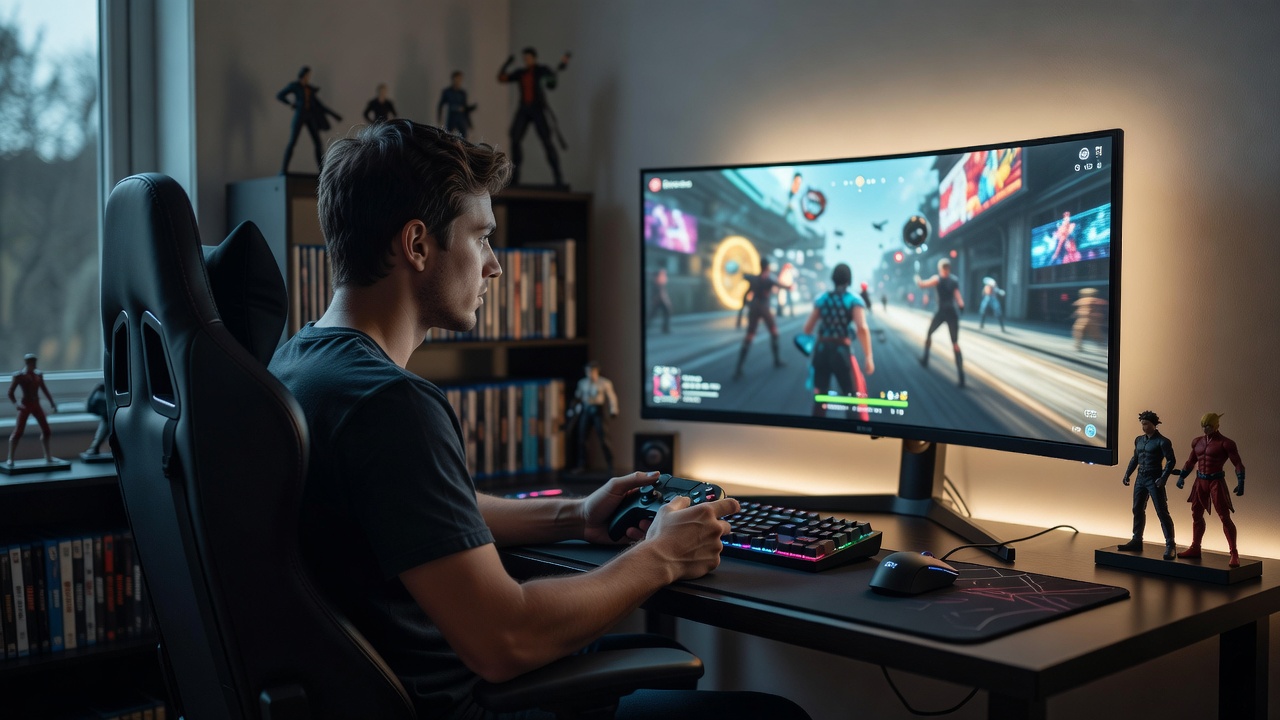
The person in the gaming corner
You care about smooth motion, input lag and whether your graphics card can keep up. So start with the resolution and frame rate you can actually reach, then choose a panel that matches. Buying a monitor faster than your hardware is money spent on numbers you will never see.
Refresh rate: 60, 144, 240
A 60 Hz screen draws a new frame every 16.7 ms. At 144 Hz that falls to 6.9 ms, and at 240 Hz to 4.2 ms. The jump from 60 to 144 Hz is the one everybody notices. From 144 to 240 Hz the gain is smaller and mostly matters in competitive shooters. The frame rate must match: a card that delivers 90 fps in your favourite game gains nothing from a 240 Hz panel.
Resolution and your graphics card
1080p is the easiest to drive and still looks good at 24 inches. A 27-inch 1440p panel is the balanced choice, with about 109 ppi and sensible demands on a mid-range card. 4K looks superb but needs a high-end GPU for high frame rates, so it suits slower games or consoles better.
Response time and adaptive sync
Manufacturers quote grey-to-grey response times, often 1 ms, but overshoot and smearing vary a lot between models. Treat the number as a hint and read measured reviews. Adaptive sync matters more: AMD FreeSync, NVIDIA G-SYNC and G-SYNC Compatible monitors match their refresh rate to your frame rate, which removes tearing without the lag of old V-sync. Use DisplayPort on a PC for the widest support.
Consoles
PlayStation 5 and Xbox Series X can output 4K at up to 120 Hz through HDMI 2.1 with variable refresh rate. Many monitors have only one HDMI 2.1 port, or none, so check the spec sheet before you plug in a console and a PC together.
IPS, VA or OLED
IPS panels offer good colour and fast motion. VA panels give deeper contrast and suit curved designs, such as the 1000R Samsung Odyssey G7, but dark scenes can ghost. OLED monitors, like the 26.5-inch ASUS ROG Swift PG27AQDM at 240 Hz or the 34-inch Alienware AW3423DWF QD-OLED at 165 Hz, have near-instant pixel response and true black. The trade-off is a small risk of burn-in from static elements, so use dark modes, move windows and enable the panel's refresh routines.
HDR deserves caution. DisplayHDR 400 on an ordinary LCD looks only slightly different from SDR. OLED screens with DisplayHDR True Black certification, or LCDs rated DisplayHDR 1000 with local dimming, show the real benefit.
Your corner
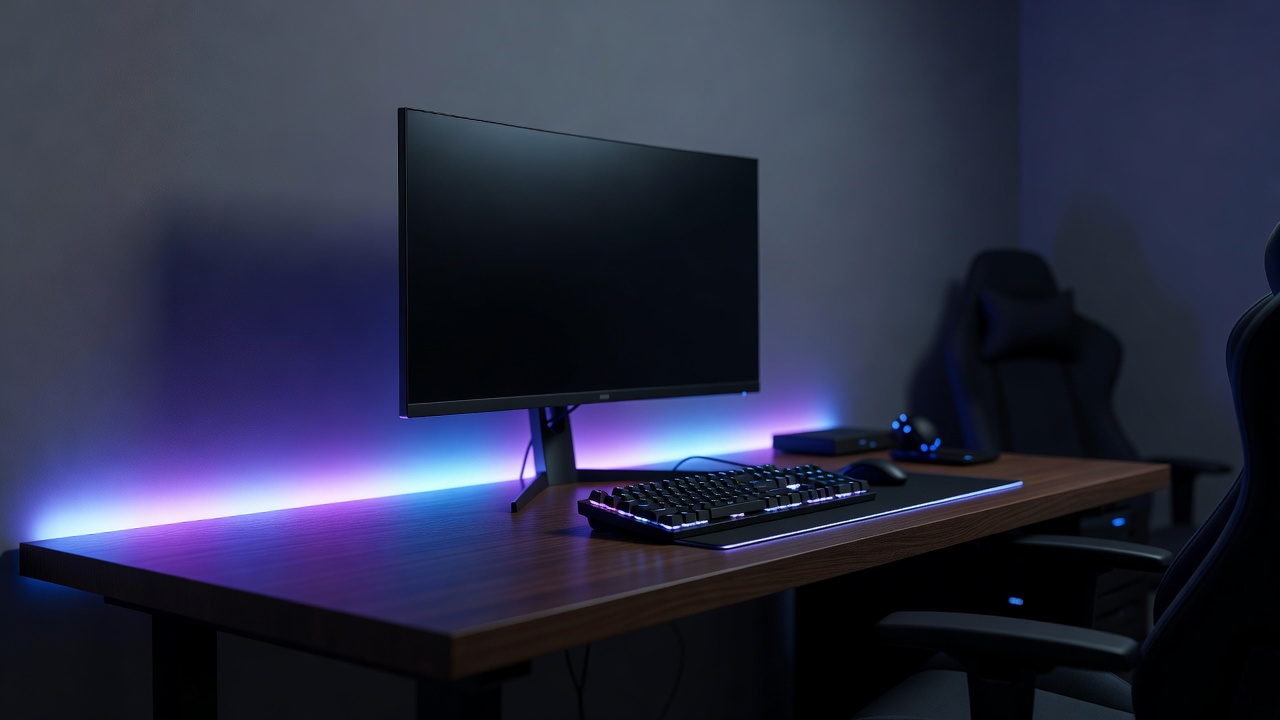
Keep the screen away from a window behind you, add a little light behind the monitor, and mount it on an arm so you can set the distance. A curved screen helps at 32 inches and wider, where the edges would otherwise sit far from your eyes.
Shortlist
Five gaming monitors compared
| Model | Size | Resolution | Refresh | Panel | Best for |
|---|---|---|---|---|---|
| LG UltraGear 27GP850-B | 27 in | 2560×1440 | 165 Hz (180 Hz OC) | Nano IPS | Balanced all-rounder |
| Gigabyte M27Q | 27 in | 2560×1440 | 165–170 Hz | IPS | Value, built-in KVM |
| Samsung Odyssey G7 | 27 in curved | 2560×1440 | 240 Hz | VA | Contrast and speed |
| ASUS ROG Swift PG27AQDM | 26.5 in | 2560×1440 | 240 Hz | OLED | Fast competitive play |
| Alienware AW3423DWF | 34 in curved | 3440×1440 | 165 Hz | QD-OLED | Immersive single-player |
Specifications come from manufacturers and can differ by region and revision. Check the current listing before you buy.