A 24-inch 1080p panel: the budget baseline.

Budget and ultrawide
Resolution, refresh and the room you sit in
Spend on the panel and the stand, skip the gimmicks, and know when one wide screen replaces two.
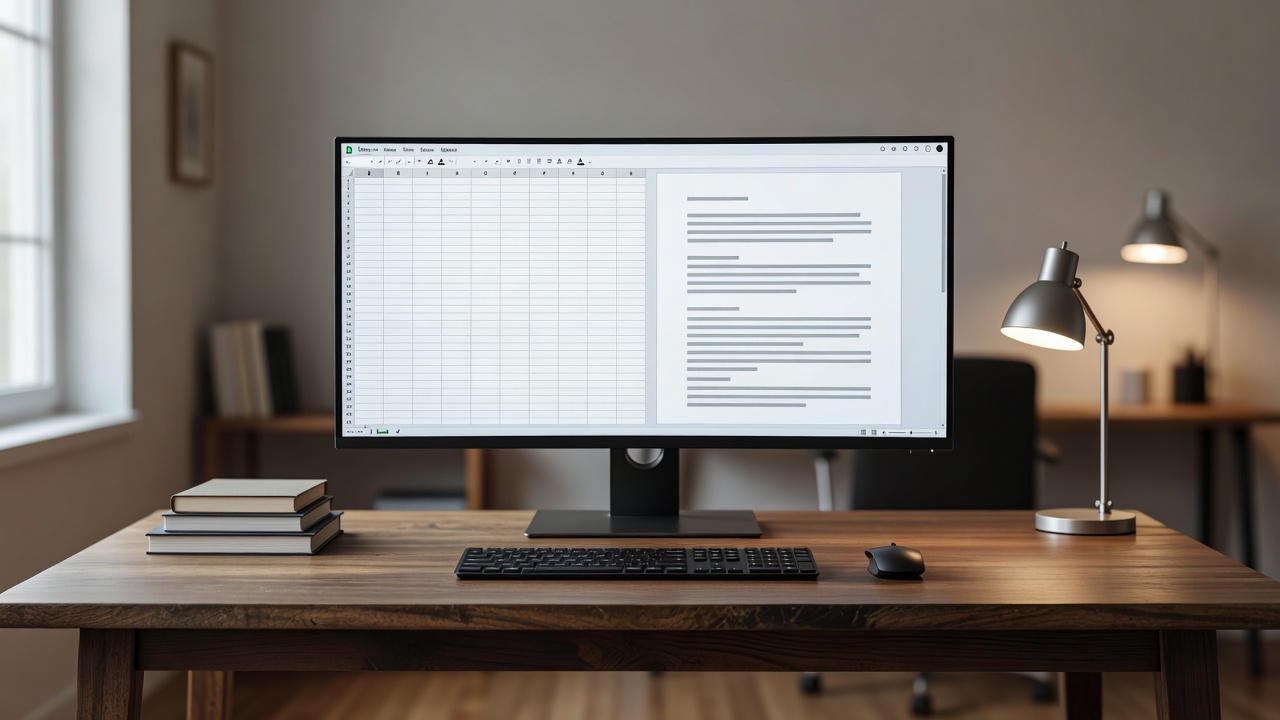
A 34-inch 3440×1440 ultrawide.
The saver checklist
- IPS or good VA
- Height adjust or VESA
- Right size for resolution
- Warranty and returns
The person watching the budget
A good monitor does not have to be expensive. It has to be the right size for its resolution, use a decent panel and sit on a stand you can adjust. Everything else is optional, and a lot of it is marketing.
What to prioritise
Start with panel type. A basic IPS panel gives wider viewing angles and better colour than a TN panel, and entry-level IPS screens are now common. Next, match size to resolution. A 24-inch 1080p screen has about 92 ppi, which is fine. Stretch 1080p across 27 inches and you fall to about 82 ppi, and text looks soft. If you want 27 inches, step up to 1440p. Refresh rate is the cheap luxury: 75 to 100 Hz makes scrolling and cursor movement noticeably smoother, and a 144 Hz model such as the AOC 24G2 adds smooth gaming for little extra.
Where to save
Skip built-in speakers, RGB lighting and a curved shape on small screens. Be wary of HDR 400 badges on budget panels, which rarely change how the picture looks. Refurbished business monitors, such as Dell's UltraSharp range, often give far better build and stands than new consumer screens at the same price, provided the seller offers a warranty. Check the pixel-fault policy before you buy; many makers reference the ISO 9241-307 classes.
Cables and mounts
Use DisplayPort for high refresh rates on a PC, and check your HDMI version if a laptop is involved. A VESA 100×100 monitor arm is the best-value upgrade for any desk, because it frees space and lets you set the height properly.
When an ultrawide makes sense
A 34-inch 21:9 ultrawide at 3440×1440 has a density near 110 ppi and is about a third wider than a 27-inch 16:9 screen. It suits spreadsheets, code and video timelines, where width helps, and many games support 21:9. A 49-inch 32:9 model with 5120×1440, such as the Samsung Odyssey G9, equals two 27-inch 1440p screens without the bezel, but it needs a desk at least 70 cm deep and a graphics output that supports the resolution.
Curves and window management
A gentle curve of about 1800R on a 34-inch panel keeps the edges comfortable. Windows PowerToys FancyZones, or the snap layouts built into Windows 11, split the screen into zones, so that a wide display behaves like two or three monitors when you need it.
Panel choices
The LG 34WP65C is a curved VA ultrawide at 160 Hz and a sensible entry point. The Dell U3423WE adds an IPS Black panel with a USB-C hub for office use. For gaming, the Alienware AW3423DWF is an OLED step-up with exceptional contrast.
Shortlist
Five value and wide monitors compared
| Model | Size | Resolution | Refresh | Panel | Why pick it |
|---|---|---|---|---|---|
| AOC 24G2 | 24 in | 1920×1080 | 144 Hz | IPS | Budget gaming and general use |
| LG 34WP65C | 34 in curved | 3440×1440 | 160 Hz | VA | Entry-level ultrawide |
| Dell U3423WE | 34 in curved | 3440×1440 | 60 Hz | IPS Black | USB-C hub for office work |
| Alienware AW3423DWF | 34 in curved | 3440×1440 | 165 Hz | QD-OLED | Premium contrast for games |
| Samsung Odyssey G9 | 49 in curved | 5120×1440 | 240 Hz | VA | Replaces two monitors |
Specifications come from manufacturers and can differ by region and revision. Check the current listing before you buy.